
Filling Your Card
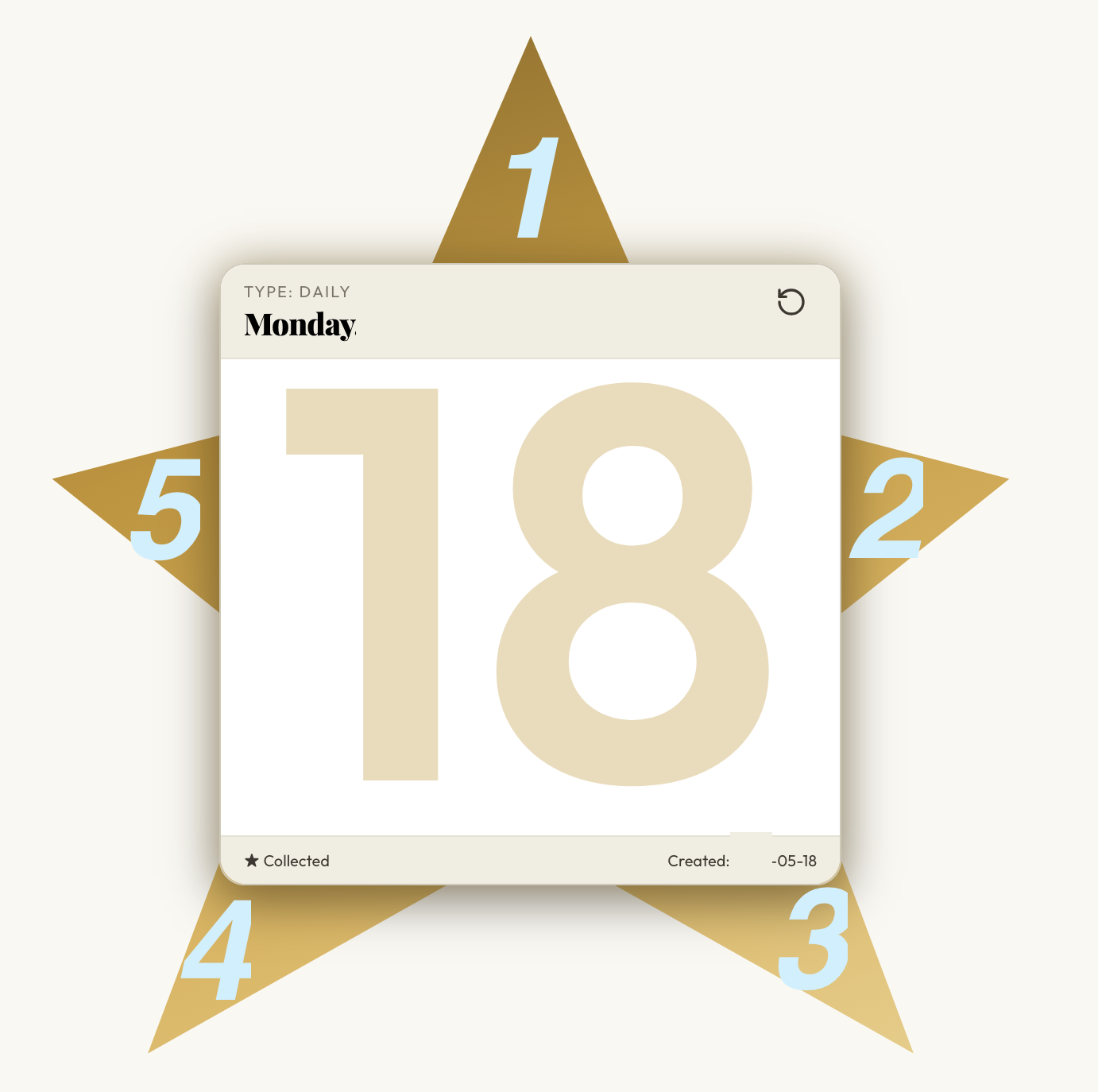
Every card in StarCards is shaped around five star points. Starting at Point 1 and moving clockwise, they spell CARDS. This is where you do the actual work of a card — capturing details, attaching files, tagging, organizing, and sharing.
The Five Points
| Point | Letter | Stands for |
|---|---|---|
| 1 | C | Card Info |
| 2 | A | Attachments |
| 3 | R | Related |
| 4 | D | Decks |
| 5 | S | Settings & Share |
Point 1 — C: Card Info
Capture the title, description, and metadata of the card.
- Title — required, max 120 characters. This is what identifies the card in your Archive and Decks.
- Description — optional freeform text. Use it for context, intent, or notes.
Point 2 — A: Attachments
Attach files or links to the card.
- Upload files (images, documents) stored alongside the card.
- Add links to external URLs.
Point 3 — R: Related
The Related point holds Star Tags, related and child cards, type-specific details, and — for a daily card — that day's task list.
- Star Tags — shared freeform labels that apply to both cards and tasks. The same tag can label a card and a task, so tagging works across your whole journal.
- Related cards — link out to related or child cards.
- Type-specific details — fields that vary by card type.
- Tasks (daily cards) — add tasks for the day. Each task has:
- A title
- A status: Do / Doing / Did
- A priority: Low / Medium / High / Urgent
- An optional due date
Tasks on a daily card are linked to the broader task system — you can also find and manage them from the Tasks view.
Point 4 — D: Decks
Assign the card to one or more Decks.
Decks are named collections of cards. Adding a card to a Deck means it will appear when you browse that Deck. You can create a new deck inline while assigning. Daily cards are automatically added to the daily Deck. This point also shows help for the current card type.
Point 5 — S: Settings & Share
Card settings and public sharing.
- Archive — toggle whether the card is archived.
- Share — share the card publicly via links for Twitter/X, Facebook, LinkedIn, and Email, plus a public card URL.
Locking Behavior
Daily cards are editable only on the day they were created. After midnight, the card is read-only.
- The card's slug is set to the date in
YYYYMMDDformat (e.g.20240101). - Attempting to edit a locked card will return an error.
- Collecting before midnight is optional — the lock happens automatically at midnight.
Collected vs. Draft
A daily card is either collected (has a completion timestamp) or a draft (no timestamp). The Archive shows both, with drafts visually distinguished. Collecting is intentional — it signals you're done with the day.
Next, see Collecting & Locking for how to close out the day and what changes once a card is locked.